使用 py-spy 进行 分析
Contents
使用 py-spy 进行 分析#
堆栈跟踪和 CPU 分析#
py-spy 是 Python 程序的采样分析器。它可以让您直观地了解 Python 程序在哪些方面花费了时间,而无需重新启动程序或以任何方式修改代码。本节介绍如何配置 RayCluster YAML 文件以启用 py-spy 并通过 Ray Dashboard 查看堆栈跟踪和 CPU 火焰图。
先决条件#
py-spy 需要 SYS_PTRACE 读取进程内存的能力。但是,Kubernetes 默认忽略了此功能。要启用分析,请将以下内容添加到 head 和 worker Pod 的 template.spec.containers。
securityContext:
  capabilities:
    add:
    - SYS_PTRACE
Notes:
在 Pod 安全标准的
baseline和restricted模式下添加SYS_PTRACE是禁止的。参考 Pod 安全标准 了解更多详细信息。
通过 Ray Dashboard 检查 CPU 火焰图和堆栈跟踪#
步骤 1: 创建 Kind 集群#
kind create cluster
步骤 2: 安装 KubeRay operator#
按照 本文档 过 Helm 存储库安装最新稳定的 KubeRay Operator 。
步骤 3: 创建具有 SYS_PTRACE 功能的 RayCluster#
# Download `ray-cluster.py-spy.yaml`
curl -LO https://raw.githubusercontent.com/ray-project/kuberay/v1.0.0-rc.0/ray-operator/config/samples/ray-cluster.py-spy.yaml

# Create a RayCluster
kubectl apply -f ray-cluster.py-spy.yaml
步骤 4: 转发 dashboard port#
kubectl port-forward --address 0.0.0.0 svc/raycluster-py-spy-head-svc 8265:8265
步骤 5: 在 head Pod 运行示例作业#
# Log in to the head Pod
kubectl exec -it ${YOUR_HEAD_POD} -- bash

# (Head Pod) Run a sample job in the Pod
# `long_running_task` includes a `while True` loop to ensure the task remains actively running indefinitely.
# This allows you ample time to view the Stack Trace and CPU Flame Graph via Ray Dashboard.
python3 samples/long_running_task.py
Notes:
如果您正在运行自己的示例并在查看 CPU 火焰图时遇到 Failed to write flamegraph: I/O error: No stack counts found` 的错误,则可能是由于进程处于空闲状态。值得注意的是,使用该函数可能会导致此状态。在这种情况下,py-spy 会过滤掉空闲的堆栈跟踪。有关更多信息,请参阅此 问题。
步骤 6: 使用 Ray Dashboard 分析#
访问 http://localhost:8265/#/cluster.
点击
Stack Trace查看ray::long_running_task.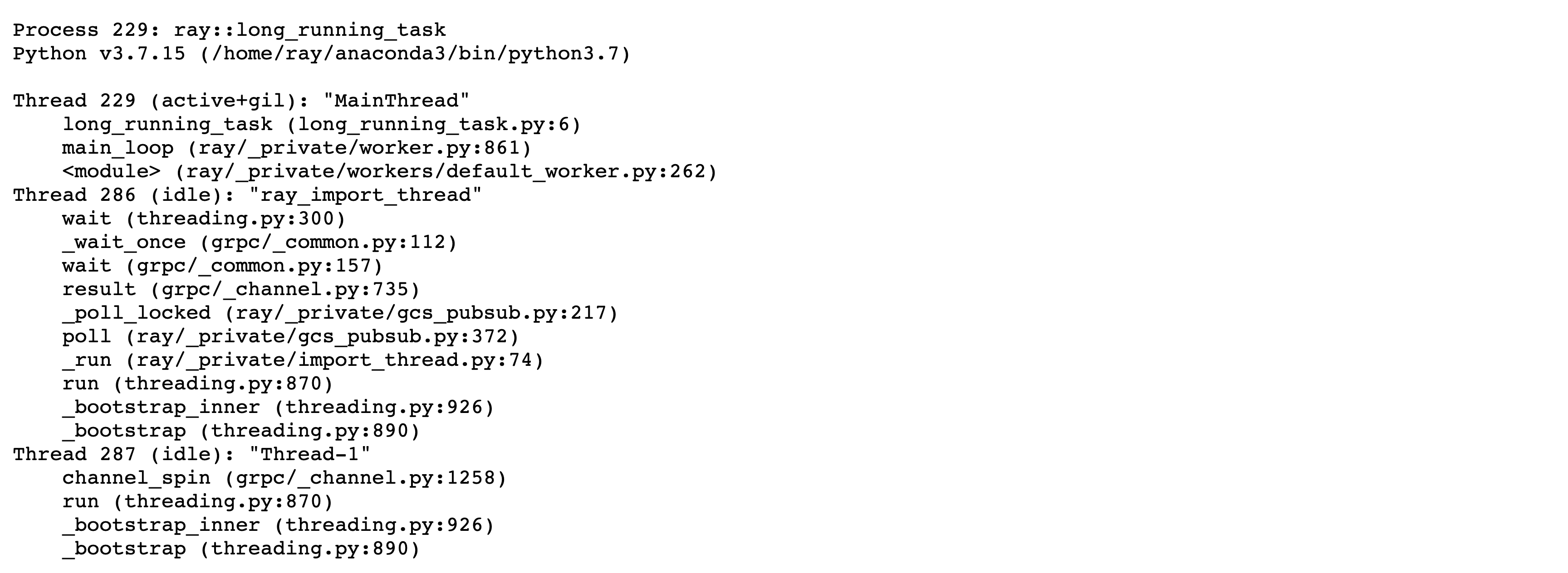
点击
CPU Flame Graph查看ray::long_running_task.
有关使用分析器的更多详细信息,请参阅 仪表板中的 Python CPU 分析。
步骤 7: 清理#
kubectl delete -f ray-cluster.py-spy.yaml
helm uninstall kuberay-operator