Experimental Deployment Graphs
Contents
Experimental Deployment Graphs#
Note
The call graph is in alpha, so its APIs are subject to change.
For more advanced composition patterns, it can be useful to surface the relationships between deployments, instead of hiding them inside individual deployment definitions.
Ray Serve’s deployment graph API lets you specify how to route requests through your deployments, so you can explicitly create a dependency graph. It also has additional features like HTTP adapters and input routing that help you build more expressive graphs.
Binding Deployments#
The basic building block for all deployment graphs is the DeploymentNode. One type of DeploymentNode is the ClassNode. You can create ClassNodes by binding class-based deployments to their constructor’s arguments with the bind method. This binding may sound familiar because you do it whenever you bind and run class-based deployments, such as calling deployments using DeploymentHandles section.
As another example:
# File name: echo.py
from starlette.requests import Request

from ray import serve


@serve.deployment
class EchoClass:
    def __init__(self, echo_str: str):
        self.echo_str = echo_str

    def __call__(self, request: Request) -> str:
        return self.echo_str


# You can create ClassNodes from the EchoClass deployment
foo_node = EchoClass.bind("foo")
bar_node = EchoClass.bind("bar")
baz_node = EchoClass.bind("baz")
echo.py defines three ClassNodes: foo_node, bar_node, and baz_node. The nodes are defined by invoking bind on the EchoClass deployment. They have different behaviors because they use different arguments in the bind call.
Note that all three of these nodes were created from the same EchoClass deployment. Class deployments are essentially factories for ClassNodes. A single class deployment can produce multiple ClassNodes through multiple bind statements.
There are two options to run a node:
serve.run(node): This Python call can be added to your Python script to run a particular node. This call starts a Ray cluster (if one isn’t already running), deploys the node to it, and then returns. You can call this function multiple times in the same script on differentDeploymentNodes. Each time, it tears down any deployments it previously deployed and deploy the passed-in node’s deployment. After the script exits, the cluster and any nodes deployed byserve.runare torn down.serve run module:node: This CLI command starts a Ray cluster and runs the node at the import pathmodule:node. It then blocks, allowing you to open a separate terminal window and issue requests to the running deployment. You can stop theserve runcommand withctrl-c.
When you run a node, you are deploying the node’s deployment and its bound arguments. Ray Serve creates a deployment in Ray and instantiates your deployment’s class using the arguments. By default, you can send requests to your deployment at http://localhost:8000. These requests are converted to Starlette request objects and passed to your class’s __call__ method.
Note
Additionally, when you run a node, the deployment’s configurations (which you can set in the @serve.deployment decorator, through an options call, or a Serve config file) still apply to the deployment. You can use this to independently scale and configure your graph’s deployments by, for instance, setting different num_replicas, num_cpus, or num_gpus values for different deployments.
You can try this example out using the serve run CLI:
$ serve run echo:foo_node
This client script that can send requests to your node:
# File name: echo_client.py
import requests

response = requests.get("http://localhost:8000/")
echo = response.text
print(echo)
While the deployment is running with serve run, open a separate terminal window and issue a request to it with the echo_client.py script:
$ python echo_client.py

foo
Building the Call Graph: MethodNodes and FunctionNodes#
After defining your ClassNodes, you can specify how HTTP requests should be processed using the call graph. As an example, let’s look at a deployment graph that implements this chain of arithmetic operations:
output = request + 2 - 1 + 3
Here’s the graph:
 1# File name: arithmetic.py
 2from ray import serve
 3from ray.serve.drivers import DAGDriver
 4from ray.serve.deployment_graph import InputNode
 5
 6from starlette.requests import Request
 7
 8
 9@serve.deployment
10class AddCls:
11    def __init__(self, addend: float):
12        self.addend = addend
13
14    def add(self, number: float) -> float:
15        return number + self.addend
16
17    async def unpack_request(self, http_request: Request) -> float:
18        return await http_request.json()
19
20
21@serve.deployment
22def subtract_one_fn(number: float) -> float:
23    return number - 1
24
25
26@serve.deployment
27async def unpack_request(http_request: Request) -> float:
28    return await http_request.json()
29
30
31add_2 = AddCls.bind(2)
32add_3 = AddCls.bind(3)
33
34with InputNode() as http_request:
35    request_number = unpack_request.bind(http_request)
36    add_2_output = add_2.add.bind(request_number)
37    subtract_1_output = subtract_one_fn.bind(add_2_output)
38    add_3_output = add_3.add.bind(subtract_1_output)
39
40graph = DAGDriver.bind(add_3_output)
Lines 31 and 32 bind two ClassNodes from the AddCls deployment. Line 34 starts the call graph:
with InputNode() as http_request:
    request_number = unpack_request.bind(http_request)
    add_2_output = add_2.add.bind(request_number)
    subtract_1_output = subtract_one_fn.bind(add_2_output)
    add_3_output = add_3.add.bind(subtract_1_output)
The with statement (known as a “context manager” in Python) initializes a special Ray Serve-provided object called an InputNode. This isn’t a DeploymentNode like ClassNodes, MethodNodes, or FunctionNodes. Rather, it’s the input of the graph. In this case, that input is an HTTP request. In a later section, you’ll learn how to change this input using another Ray Serve-provided object called the DAGDriver.
Note
The InputNode tells Ray Serve where to send the graph input at runtime. In this example, for instance, http_request is an InputNode object, so you can’t call request methods like .json() on it directly in the context manager. However, during runtime, Ray Serve passes incoming HTTP requests directly into the same functions and methods that http_request is passed into, so those functions and methods can call request methods like .json() on the request object that gets passed in.
You can use the InputNode to indicate which node(s) the graph input should be passed into by passing the InputNode into bind calls within the context manager. In this example, the http_request is passed to only one node, unpack_request. The output of that bind call, request_number, is a FunctionNode. FunctionNodes are produced when deployments containing functions are bound to arguments for that function using bind. request_number represents the output of unpack_request when called on incoming HTTP requests. unpack_request, which is defined on line 26, processes the HTTP request’s JSON body and returns a number that can be passed into arithmetic operations.
Tip
If you don’t want to manually unpack HTTP requests, check out this guide’s section on HTTP adapters, which can handle unpacking for you.
The graph then passes request_number into a bind call on add_2’s add method. The output of this call, add_2_output is a MethodNode. MethodNodes are produced when ClassNode methods are bound to arguments using bind. In this case, add_2_output represents the result of adding 2 to the number in the request.
The rest of the call graph uses another FunctionNode and MethodNode to finish the chain of arithmetic. add_2_output is bound to the subtract_one_fn deployment, producing the subtract_1_output FunctionNode. Then, the subtract_1_output is bound to the add_3.add method, producing the add_3_output MethodNode. This add_3_output MethodNode represents the final output from the chain of arithmetic operations.
To run the call graph, you need to use a driver. Drivers are deployments that process the call graph that you’ve written and route incoming requests through your deployments based on that graph. Ray Serve provides a driver called DAGDriver used on line 40:
graph = DAGDriver.bind(add_3_output)
Generally, you need to bind the DAGDriver to the FunctionNode or MethodNode representing the final output of a graph. This bind call returns a ClassNode that you can run in serve.run or serve run. Running this ClassNode also deploys the rest of the graph’s deployments.
Note
You can also bind the DAGDriver to ClassNodes. This approach is useful if you construct a deployment graph where ClassNodes invoke other ClassNodes’ methods. In this case, you should pass in the “root” ClassNode to DAGDriver (that is, the one that you would otherwise pass into serve.run). See Calling Deployments using DeploymentHandles for more information.
You can test this example using this client script:
# File name: arithmetic_client.py
import requests

response = requests.post("http://localhost:8000/", json=5)
output = response.json()
print(output)
Start the graph in the terminal:
$ serve run arithmetic:graph
In a separate terminal window, run the client script to make requests to the graph:
$ python arithmetic_client.py

9
Drivers and HTTP Adapters#
Ray Serve provides the DAGDriver, which routes HTTP requests through your call graph. As mentioned in the call graph section, the DAGDriver takes in a DeploymentNode and it produces a ClassNode that you can run.
The DAGDriver also has an optional keyword argument: http_adapter. HTTP adapters are functions that get run on the HTTP request before it’s passed into the graph. Ray Serve provides a handful of these adapters, so you can rely on them to conveniently handle the HTTP parsing while focusing your attention on the graph itself.
For instance, you can use the Ray Serve-provided json_request adapter to simplify the arithmetic call graph by eliminating the unpack_request function. You can replace lines 29 through 38 with this graph:
# This import can go to the top of the file.
from ray.serve.http_adapters import json_request

add_2 = AddCls.bind(2)
add_3 = AddCls.bind(3)

with InputNode() as request_number:
    add_2_output = add_2.add.bind(request_number)
    subtract_1_output = subtract_one_fn.bind(add_2_output)
    add_3_output = add_3.add.bind(subtract_1_output)

graph = DAGDriver.bind(add_3_output, http_adapter=json_request)
Without an http_adapter, an InputNode represents an HTTP request, and at runtime, incoming HTTP request objects are passed into the same functions and methods that the InputNode is passed into. When you set an http_adapter, the InputNode represents the http_adapter’s output.
At runtime:
Ray Serve sends each HTTP
requestobject to theDAGDriver.The
DAGDrivercalls thehttp_adapterfunction on each request.The
DAGDriverpasses thehttp_adapteroutput to the same function and methods that theInputNodeis passed into, kicking off the request’s journey through the call graph.
In the example above, the InputNode represents the number packaged inside the request’s JSON body instead of the HTTP request itself. You can pass the JSON directly into the graph instead of first unpacking it from the request.
Testing the Graph with the Python API#
The serve.run function returns a handle that you can use to test your graph in Python, without using HTTP requests.
To test your graph,
Call
serve.runon your graph and store the returned handle.Call
handle.predict.remote(input). Theinputargument becomes the input represented byInputNode. Make sure to refactor your call graph accordingly, since it takes in this input directly, instead of an HTTP request. You can use an HTTP adapter to make sure the graph you’re testing matches the one you ultimately deploy.predict.remotereturns a reference to the result, so the graph can execute asynchronously. Callray.geton this reference to get the final result.
As an example, you can continue rewriting the arithmetic graph example from above to use predict.remote. You can add testing code to the example:
# These imports can go to the top of the file.
import ray
from ray.serve.http_adapters import json_request
from ray.serve.handle import DeploymentHandle, DeploymentResponse

add_2 = AddCls.bind(2)
add_3 = AddCls.bind(3)

with InputNode() as request_number:
    add_2_output = add_2.add.bind(request_number)
    subtract_1_output = subtract_one_fn.bind(add_2_output)
    add_3_output = add_3.add.bind(subtract_1_output)

graph = DAGDriver.bind(add_3_output, http_adapter=json_request)

handle: DeploymentHandle = serve.run(graph).options(use_new_handle_api=True)

response: DeploymentResponse = handle.predict.remote(5)
print(response.result())
Note that the graph itself is still the same. The only change is the testing code added after it. You can run this Python script directly now to test the graph:
$ python arithmetic.py

9
Visualizing the Graph#
You can render an illustration of your deployment graph to see its nodes and their connection.
Make sure you have pydot and graphviz to follow this section:
pip install -U pydot && brew install graphviz
pip install -U pydot && winget install graphviz
pip install -U pydot && sudo apt-get install -y graphviz
Here’s an example graph:
# File name: deployment_graph_viz.py

from ray import serve
from ray.serve.deployment_graph import InputNode
from ray.dag.vis_utils import _dag_to_dot


@serve.deployment
class Model:
    def __init__(self, weight: int):
        self.weight = weight

    def forward(self, input: int) -> int:
        return input + self.weight


@serve.deployment
def combine(output_1: int, output_2: int, kwargs_output: int = 0) -> int:
    return output_1 + output_2 + kwargs_output


m1 = Model.bind(1)
m2 = Model.bind(2)

with InputNode() as user_input:
    m1_output = m1.forward.bind(user_input[0])
    m2_output = m2.forward.bind(user_input[1])
    combine_output = combine.bind(m1_output, m2_output, kwargs_output=user_input[2])

# m1_output visualization
graph = _dag_to_dot(m1_output)
to_string = graph.to_string()
print(to_string)

# Full graph visualization
graph = _dag_to_dot(combine_output)
to_string = graph.to_string()
print(to_string)
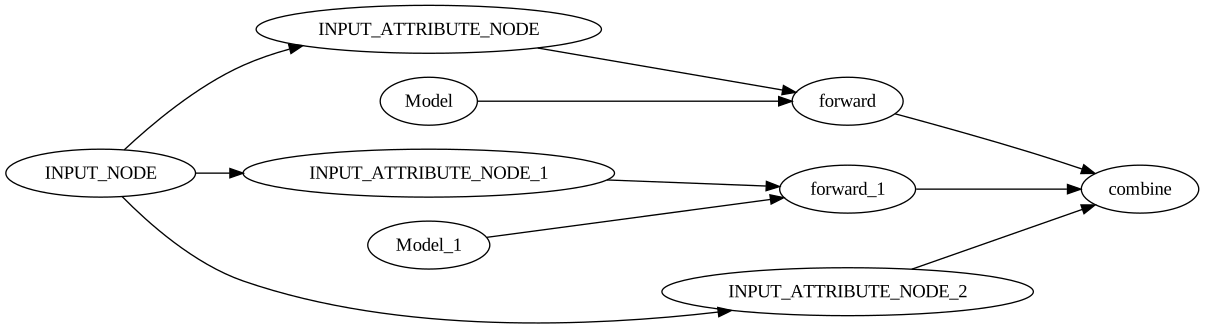
The ray.dag.vis_utils._dag_to_dot method takes in a DeploymentNode and produces a graph visualization. You can see the string form of the visualization by running the script:
$ python deployment_graph_viz.py

digraph G {
rankdir=LR;
INPUT_ATTRIBUTE_NODE -> forward;
INPUT_NODE -> INPUT_ATTRIBUTE_NODE;
Model -> forward;
}

digraph G {
rankdir=LR;
forward -> combine;
INPUT_ATTRIBUTE_NODE -> forward;
INPUT_NODE -> INPUT_ATTRIBUTE_NODE;
Model -> forward;
forward_1 -> combine;
INPUT_ATTRIBUTE_NODE_1 -> forward_1;
INPUT_NODE -> INPUT_ATTRIBUTE_NODE_1;
Model_1 -> forward_1;
INPUT_ATTRIBUTE_NODE_2 -> combine;
INPUT_NODE -> INPUT_ATTRIBUTE_NODE_2;
}
You can render these strings in graphviz tools such as https://dreampuf.github.io/GraphvizOnline.
When the script visualizes m1_output, it shows a partial execution path of the entire graph:

This path includes only the dependencies needed to generate m1_output.
On the other hand, when the script visualizes the final graph output, combine_output, it captures all nodes used in execution since they’re all required to create the final output.
Visualizing the Graph with Gradio#
Another option is to visualize your deployment graph through Gradio. Check out the Graph Visualization with Gradio Tutorial to learn how to interactively run your deployment graph through the Gradio UI and see the intermediate outputs of each node in real time as they finish evaluation.